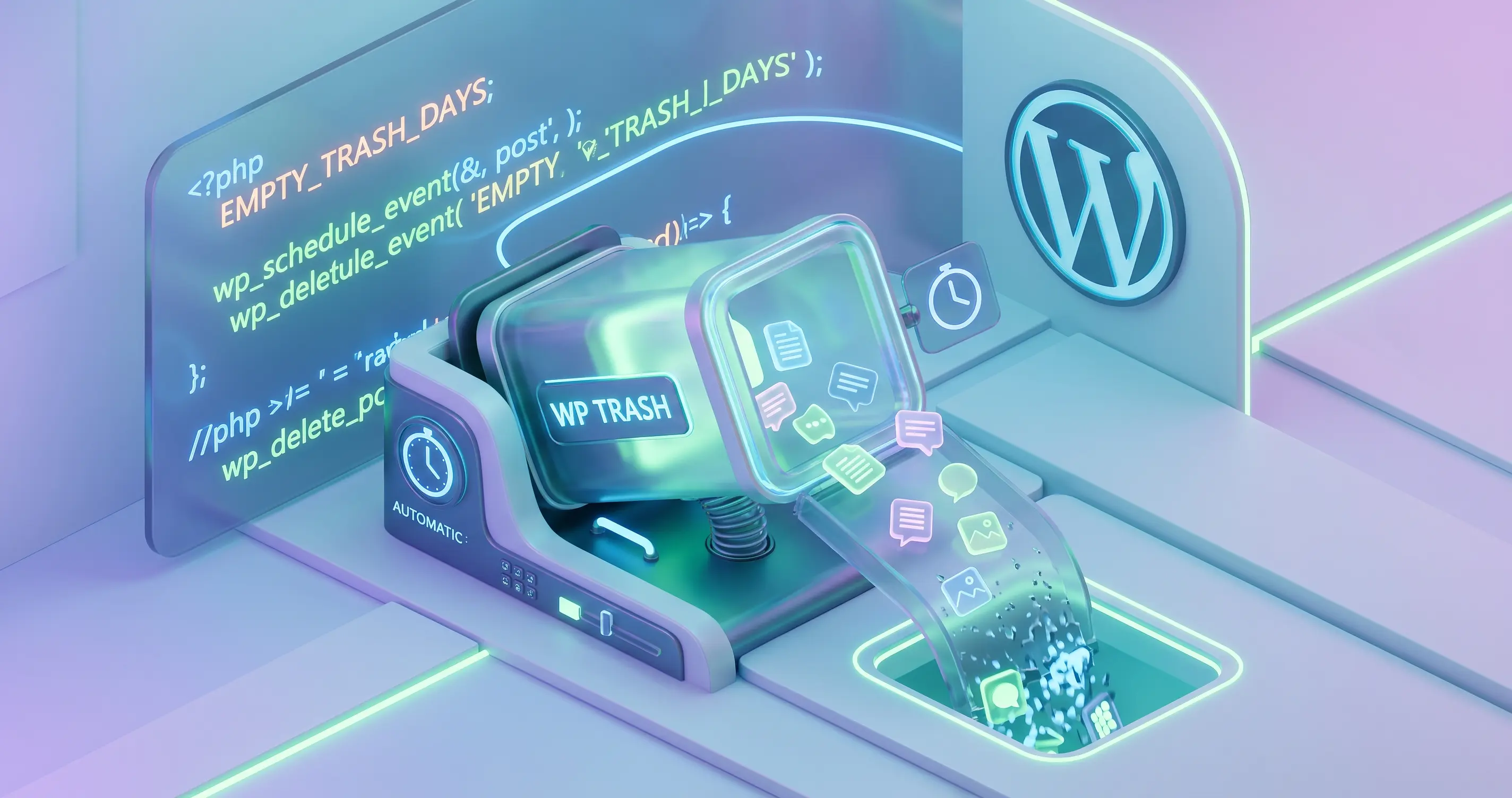
How Orphaned Trash Data Degrades Your Database
Moving a post, page, or attachment to Trash doesn't remove it from wp_posts — it just changes its post_status to "trash" and leaves the full row (and every bit of its post content, meta, and taxonomy relationships) sitting exactly where it was. Spam comments work the same way in wp_comments. None of this data disappears until something explicitly issues a permanent delete.
On most sites this quietly accumulates for months. The practical costs:
- Bigger tables to query and back up: trashed rows still count toward table size, index size, and backup time even though they're functionally dead weight.
- Disk space held hostage: a trashed attachment's actual image/video file stays on disk in wp-content/uploads until it's permanently deleted — trashing a large media library doesn't free any storage.
- Spam comment bloat: a site under constant comment spam can accumulate thousands of spam rows in wp_comments (and their associated wp_commentmeta rows) that serve no purpose but still get scanned by comment-related queries.
WordPress actually has a native trash-cleanup mechanism already built in — it's just tied to a default 30-day window and depends on WP-Cron actually firing, which on a low-traffic site, it often doesn't reliably.
1. Set Your Own Trash Retention Period
WordPress core already deletes trashed posts, pages, attachments, and spam comments older than a set number of days — this constant is what controls that number. The default is 30 days; dropping it to something like 7 makes core clean up considerably more aggressively without any extra code.
Where to insert: wp-config.php, above the line that reads /* That's all, stop editing! Happy publishing. */
- Open wp-config.php via FTP or your hosting file manager.
- Paste the snippet below above the "stop editing" comment line.
- Trash a test post and confirm (by checking again after your set number of days) that it's been permanently removed rather than sitting in Trash indefinitely.
define('EMPTY_TRASH_DAYS', 7);Setting this to 0 disables the Trash entirely — deleting anything becomes immediate and permanent, with no recovery window. Only do this if you're confident you never want a "did I mean to delete that?" safety net.
2. Make Sure WP-Cron Is Actually Reliable
Here's the catch with Step 1: WordPress's default "cron" isn't a real system cron job — it only checks for scheduled tasks when someone visits your site. On a low-traffic site with long gaps between visitors, scheduled cleanup tasks (including the trash deletion from Step 1) can sit unexecuted far longer than intended. Fixing this properly means disabling WordPress's pseudo-cron and pointing a real server-level cron job at it instead.
Where to insert the constant: wp-config.php, alongside the EMPTY_TRASH_DAYS line.
- Paste the snippet below into wp-config.php.
- Log into your hosting control panel's Cron Jobs section (cPanel, Plesk, or your host's equivalent).
- Add a new cron job using the command shown further below, set to run every 15 minutes.
- Save, then wait 15-30 minutes and confirm scheduled tasks are still firing — a simple test is scheduling a one-time event that writes a line to a log file, and checking whether it fired on time.
define('DISABLE_WP_CRON', true);The actual cron job you add in your hosting control panel (not a PHP snippet — this goes in your host's Cron Jobs interface):
*/15 * * * * wget -q -O - https://yoursite.com/wp-cron.php?doing_wp_cron >/dev/null 2>&1Replace yoursite.com with your actual domain. If your host doesn't offer wget, most also accept an equivalent curl-based command — check your hosting provider's cron documentation for their preferred syntax.
3. Add a Custom, More Aggressive Cleanup Routine
If you want full control over what gets cleaned and exactly when — rather than relying on core's built-in behavior tied to EMPTY_TRASH_DAYS — this snippet registers your own scheduled task that permanently deletes trashed posts, pages, attachments, and spam comments older than a period you define directly in the code.
Where to insert: your site-specific plugin file, or your theme's functions.php.
- Paste the snippet below into your plugin file.
- Adjust the
$daysvalue and the post types array to match what you want cleaned. - Reload any page once so the
wp_schedule_event()call registers the task (it only needs to run once to schedule; it won't re-register on every page load thanks to thewp_next_scheduled()check).
function schedule_custom_trash_cleanup() {
    if (!wp_next_scheduled('custom_weekly_trash_cleanup')) {
        wp_schedule_event(time(), 'daily', 'custom_weekly_trash_cleanup');
    }
}
add_action('wp', 'schedule_custom_trash_cleanup');

function run_custom_trash_cleanup() {
    $days   = 7;
    $cutoff = date('Y-m-d H:i:s', strtotime("-{$days} days"));

    // Permanently delete trashed posts, pages, and attachments older than the cutoff
    $trashed_items = get_posts(array(
        'post_type'      => array('post', 'page', 'attachment'),
        'post_status'    => 'trash',
        'posts_per_page' => -1,
        'date_query'     => array(
            array('column' => 'post_modified', 'before' => $cutoff),
        ),
    ));

    foreach ($trashed_items as $item) {
        wp_delete_post($item->ID, true); // true = skip Trash, delete permanently
    }

    // Permanently delete spam comments older than the cutoff
    $spam_comments = get_comments(array(
        'status'     => 'spam',
        'date_query' => array(
            array('column' => 'comment_date', 'before' => $cutoff),
        ),
    ));

    foreach ($spam_comments as $comment) {
        wp_delete_comment($comment->comment_ID, true);
    }
}
add_action('custom_weekly_trash_cleanup', 'run_custom_trash_cleanup');
A note on the cron schedule interval: the code above uses 'daily', one of WordPress's three built-in intervals (hourly, twicedaily, daily) — the actual 7-day retention is enforced by the $days variable inside the function, not by how often the event fires. Running the check daily just means trash never sits around more than a day past your 7-day cutoff, rather than waiting a full week between cleanup passes.
Testing and Verification
- If you have WP-CLI access, trigger the custom event manually without waiting for its schedule:
wp cron event run custom_weekly_trash_cleanup. Confirm it runs without a PHP error. - Trash a test post, then manually backdate it for testing by updating its
post_modifiedvalue in the database to more than 7 days ago, and re-run the cleanup event — confirm the test post is now gone from Trash entirely, not just hidden. - Check wp-content/uploads for a trashed test attachment's file before and after cleanup — confirm the physical file is actually removed from disk, not just the database row.
- Use
wp cron event list(WP-CLI) to confirmcustom_weekly_trash_cleanupshows a valid "next run" time, which confirms the schedule itself registered correctly.
Final Checklist
- EMPTY_TRASH_DAYS set to a retention period that matches how long you actually want a "recover this" safety window.
- WP-Cron reliability confirmed — either via genuine site traffic or a real server-level cron job hitting wp-cron.php.
- Custom cleanup event registered and confirmed showing a valid next-run time.
- Verified a test trashed post, page, and attachment are all permanently removed after the retention period, including the physical file for attachments.
- Verified spam comments older than the retention period are also being cleared.
This entire setup runs on WordPress's own cron API and core delete functions — nothing here reaches into the database directly except the one-time backdating step used purely for testing, which makes it safe to leave running unattended indefinitely.

Comments & Feature Requests
0 Found a bug, or want a new tool? Let us know below.
comments_no_comments