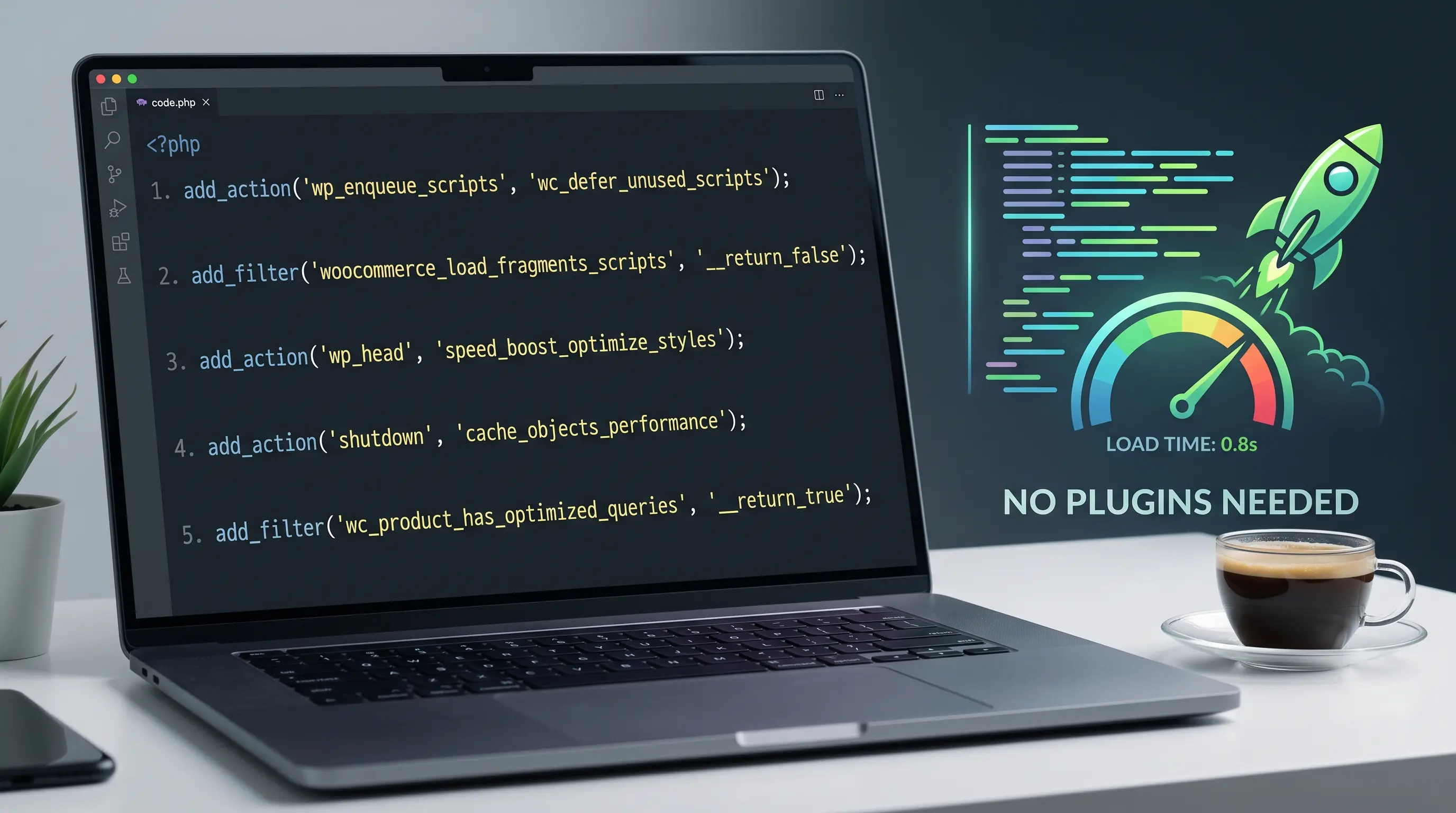
1. Dequeue WooCommerce CSS/JS on Pages That Don't Need It
WooCommerce loads its core stylesheets and scripts on every single page by default — your homepage, blog posts, even a plain "About Us" page get the full cart/checkout CSS and JS bundle whether a product is on screen or not. That's dead weight on every page load outside the shop itself.
Where to insert: functions.php
add_action( 'wp_enqueue_scripts', 'dn_dequeue_woocommerce_assets', 99 );
function dn_dequeue_woocommerce_assets() {
    if ( is_woocommerce() || is_cart() || is_checkout() || is_account_page() ) {
        return; // keep WooCommerce assets on pages that actually need them
    }
    wp_dequeue_style( 'woocommerce-general' );
    wp_dequeue_style( 'woocommerce-layout' );
    wp_dequeue_style( 'woocommerce-smallscreen' );
    wp_dequeue_script( 'woocommerce' );
    wp_dequeue_script( 'wc-add-to-cart' );
    wp_dequeue_script( 'wc-cart-fragments' );
}
Step-by-step:
- Paste the snippet into
functions.php. - Open a non-shop page (e.g., a blog post) in an incognito window and check the Network tab in DevTools — the WooCommerce CSS/JS files should no longer load.
- Visit a product page, the cart, and checkout to confirm those still load everything correctly — this condition list (
is_woocommerce(),is_cart(), etc.) is what protects them. - If your theme shows a mini-cart widget in the header on every page (not just shop pages), skip this snippet or add that widget's required scripts back to the exception list — otherwise the mini-cart will stop working outside the shop.
2. Tame Cart Fragments — the Silent AJAX Request on Every Page
By default, WooCommerce fires an admin-ajax.php request on every page load to keep the mini-cart count in sync (this is what powers the "1 item in cart" badge updating without a refresh). On a busy site, this is a constant stream of uncached AJAX calls hitting PHP — measurable overhead multiplied across every single visitor and page view.
Where to insert: functions.php
// Full removal — use only if you don't rely on a live-updating
// mini-cart count anywhere in your theme.
add_action( 'wp_enqueue_scripts', function () {
    wp_dequeue_script( 'wc-cart-fragments' );
}, 11 );
Step-by-step:
- Before pasting this, check whether your theme's header shows a cart icon with a live item count that updates without a page reload — if it does, this snippet will freeze that count until the next full page load.
- If you don't rely on that live update (many themes just show the count from the page's own render), paste the snippet into
functions.php. - Add a product to your cart from a product listing page, then check the header cart icon — if it doesn't update instantly but does after navigating to a new page, the snippet is working as expected.
- Open DevTools → Network → filter by
admin-ajax.phpand reload a few pages — you should no longer see the automaticwc-ajax=get_refreshed_fragmentsrequest firing on load.
3. Shrink the "Related Products" Query on Product Pages
The "Related Products" section at the bottom of a product page runs its own database query, and by default WooCommerce pulls more candidates than it actually displays before filtering them down. On stores with a large catalog, this query gets noticeably heavier — trimming the pool it searches through speeds up every single product page.
Where to insert: functions.php
add_filter( 'woocommerce_output_related_products_args', function ( $args ) {
    $args['posts_per_page'] = 3; // how many related products to actually show
    $args['columns']        = 3; // how many columns to display them in
    return $args;
} );
Step-by-step:
- Paste the snippet into
functions.php. - Change
posts_per_pageandcolumnsto match how many related products you actually want shown — they don't have to match each other, but for a clean grid it usually looks best if they do. - Open any product page and scroll to the Related Products section to confirm the new count.
- If you want to remove the section entirely instead of shrinking it, set
$args['posts_per_page'] = 0;instead.
4. Shorten WooCommerce's Session Lifetime
WooCommerce stores a session row for every visitor who so much as views a product or adds something to their cart — including guests who never come back. By default, these sessions live for 48 hours, which means a busy store can accumulate a large number of session rows in the database at any given time, most of them abandoned. Shortening the lifetime keeps that table leaner and its queries faster.
Where to insert: functions.php
// Show the "your session is expiring" notice after 6 hours instead of the default.
add_filter( 'wc_session_expiring', function ( $seconds ) {
    return HOUR_IN_SECONDS * 6;
} );

// Fully expire abandoned sessions after 8 hours instead of the default 48.
add_filter( 'wc_session_expiration', function ( $seconds ) {
    return HOUR_IN_SECONDS * 8;
} );
Step-by-step:
- Paste the snippet into
functions.php. - Adjust the hour values to fit your store — a site with a long average checkout time (multi-day B2B orders, for example) should keep this longer; a fast-turnover retail store can safely go shorter.
- These settings only affect new sessions created after you add the snippet — existing sessions keep their original expiration.
- To see the effect on database size, check your
wp_woocommerce_sessionstable row count a few days before and after making this change.
5. Disable Unused Product Gallery Zoom, Lightbox & Slider Scripts
WooCommerce's default product gallery loads three separate JavaScript features on every single product page: image zoom on hover, a lightbox popup, and a touch slider — even if your theme overrides the gallery entirely or you never use these interactions. Each one is extra JS parsed and executed for nothing.
Where to insert: functions.php
add_action( 'wp_loaded', function () {
    // Comment out any line below for a feature you actually want to keep.
    remove_theme_support( 'wc-product-gallery-zoom' );
    remove_theme_support( 'wc-product-gallery-lightbox' );
    remove_theme_support( 'wc-product-gallery-slider' );
} );
Step-by-step:
- Open a product page first and check whether you actually use image zoom, the lightbox popup, or the swipe slider — if customers rely on any of these, keep that specific line commented out.
- Paste the snippet (with only the lines you want) into
functions.php. - Reload a product page and confirm the gallery still displays images correctly — removing these features only disables the extra interaction, not the images themselves.
- Check DevTools → Network again to confirm the corresponding JS files (like
zoom.min.jsorphotoswipe.min.js) no longer load.
A Note on Measuring the Difference
Run a before/after comparison with a tool like Google PageSpeed Insights or GTmetrix on a product page and a non-shop page — the biggest visible win usually comes from snippet #1 (fewer assets loading site-wide) and #2 (one less AJAX request per page). Snippets #3 through #5 matter more as your catalog and traffic grow, since their savings compound with product count and visitor volume rather than being felt immediately on a small store.
Want these as ready-to-copy cards with a live preview instead of scrolling through a blog post? Check the WooCommerce Essential Snippets category in our WordPress Snippet Generator.
Comments & Feature Requests
0 Found a bug, or want a new tool? Let us know below.
comments_no_comments