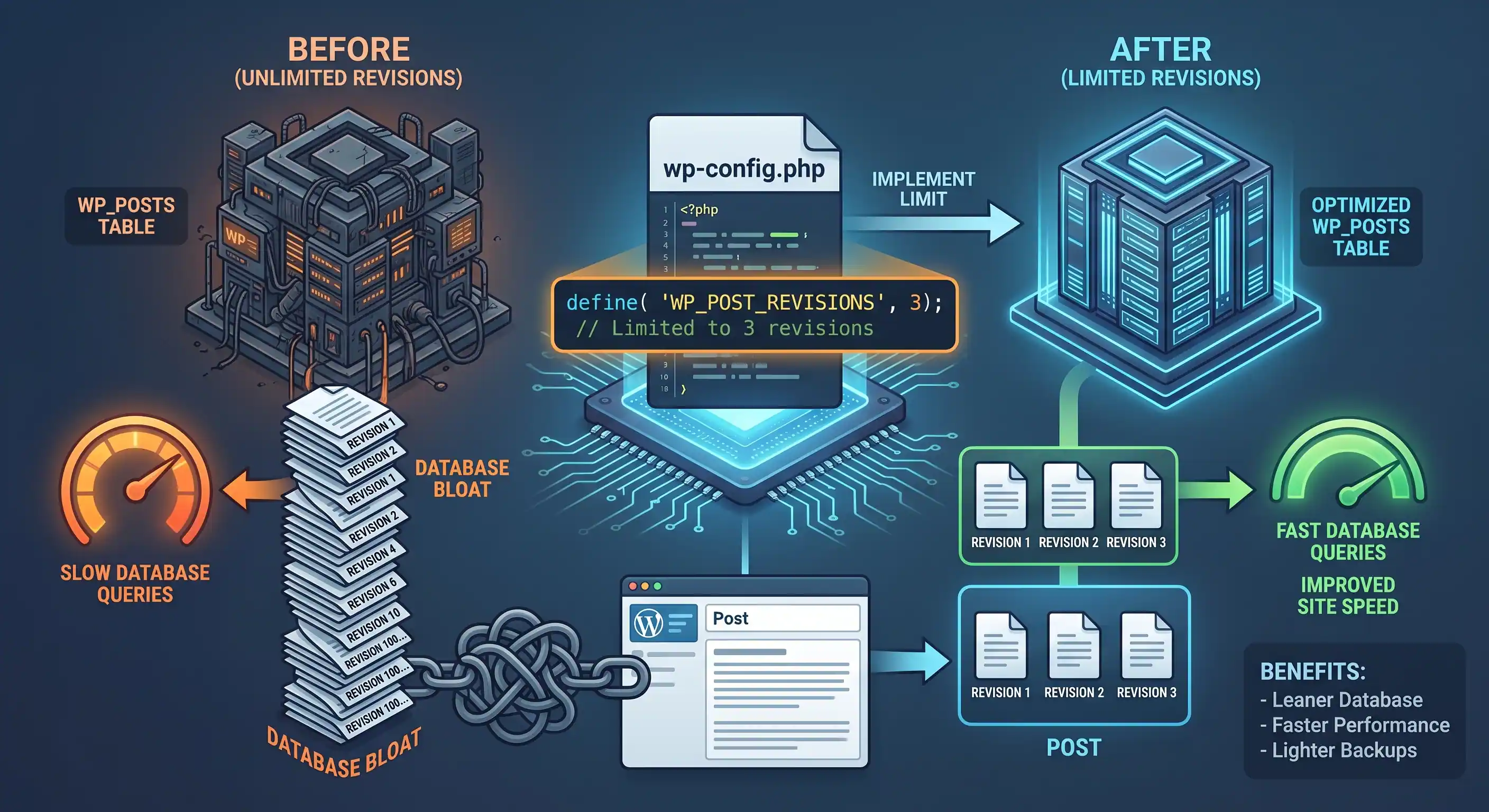
How Unchecked Revisions Bloat wp_posts
Every time you click Update on a post, and every time WordPress's autosave fires (roughly every 60 seconds while you're actively editing), a full copy of that post's content gets written into the wp_posts table as a new row with post_type = 'revision'. Unlike a diff-based version control system, WordPress stores the entire post content again on every single revision — not just what changed.
On a site with a handful of static pages, this is barely noticeable. On a content-heavy site where editors revise the same post dozens of times over weeks, or where autosave runs constantly during long editing sessions, wp_posts can end up holding far more revision rows than actual published content. That has three concrete costs:
- Table size: revisions accumulate indefinitely by default — WordPress keeps every single one unless you tell it otherwise.
- Query performance: queries against wp_posts (even ones that filter by post_type) still have to scan a larger table and larger indexes as revision rows pile up.
- Backup size and time: every revision gets backed up along with your real content, so backups grow proportionally slower and larger for no benefit.
None of this requires a caching or database-optimization plugin to fix — WordPress has native controls for exactly this, you just have to turn them on.
1. Set a Global Revision Limit (wp-config.php)
This constant caps how many revisions WordPress keeps per post, site-wide. Once the limit is reached, saving a new revision automatically deletes the oldest one to make room — you don't need a separate cleanup step for revisions created after this is in place.
Where to insert: wp-config.php, above the line that reads /* That's all, stop editing! Happy publishing. */
- Open wp-config.php via FTP or your hosting file manager.
- Paste the snippet below above the "stop editing" comment line.
- Save the file, edit any post a few times, and confirm (via the Revisions screen under the post editor) that the revision count stops growing past your set limit.
define('WP_POST_REVISIONS', 5);To disable revisions entirely site-wide instead of capping them, set the same constant to false:
define('WP_POST_REVISIONS', false);2. Set Different Limits Per Post Type (functions.php)
The wp-config.php constant is all-or-nothing across your whole site. If you want Pages to keep no revisions at all (since they're usually edited rarely and don't need history) while Posts keep a handful, this filter gives you that granularity.
Where to insert: your site-specific plugin file, or your theme's functions.php.
- Paste the snippet below into your plugin file.
- Adjust the post type slugs and numbers to match your own content structure.
- Edit a Page multiple times and confirm no revisions accumulate for it; edit a Post and confirm revisions cap at the number you set.
function limit_revisions_per_post_type($num, $post) {
    if ($post->post_type === 'page') {
        return 0; // no revisions at all for Pages
    }
    if ($post->post_type === 'product') {
        return 3;
    }
    return $num; // falls back to WP_POST_REVISIONS or WordPress's default
}
add_filter('wp_revisions_to_keep', 'limit_revisions_per_post_type', 10, 2);
This filter takes priority over the wp-config.php constant for whichever post types it explicitly handles — returning $num unchanged for everything else lets the global constant continue applying as a fallback.
3. Reduce Autosave Frequency (Optional)
Autosave doesn't create a numbered revision every single time it fires — but it does perform a database write, and on a slower server or a heavily-plugin-laden editor screen, the default 60-second interval adds up to a lot of background writes during a long editing session. Stretching this out reduces load without meaningfully increasing your risk of losing work.
Where to insert: wp-config.php, alongside the revisions constant.
- Paste the snippet below into wp-config.php.
- Open the post editor, wait past the old 60-second mark, and confirm (via your browser's Network tab, filtering for
admin-ajax.php) that autosave requests now fire every 5 minutes instead.
define('AUTOSAVE_INTERVAL', 300); // seconds — 300 = 5 minutes instead of the 60-second default4. Clean Up Revisions Already in Your Database
Steps 1-3 only control revisions created from this point forward — they do nothing about the hundreds or thousands that may already be sitting in wp_posts from before you applied a limit. This needs a direct database cleanup, done once.
Before running anything below: take a full database backup. This is a bulk delete operation against production data.
Where to run this: phpMyAdmin, Adminer, or any SQL client your host provides — not a PHP file.
- Back up your database first. Do not skip this.
- Run the count query below to see how many revision rows currently exist.
- Run the delete query to remove them.
- Run the orphaned-postmeta cleanup query to remove leftover metadata rows that referenced the now-deleted revisions.
- Re-run the count query and confirm it now returns 0.
-- Step 1: see how many revisions currently exist
SELECT COUNT(*) FROM wp_posts WHERE post_type = 'revision';

-- Step 2: delete them all (your revision limits above prevent this pile from re-forming)
DELETE FROM wp_posts WHERE post_type = 'revision';

-- Step 3: clean up postmeta rows left behind with no matching post
DELETE pm FROM wp_postmeta pm
LEFT JOIN wp_posts wp ON pm.post_id = wp.ID
WHERE wp.ID IS NULL;
Replace wp_ with your actual table prefix if it's been customized — check wp-config.php's $table_prefix value if you're not sure.
Verification: Confirm the Cleanup Actually Worked
- Run
SELECT COUNT(*) FROM wp_posts WHERE post_type = 'revision';again — it should return 0 immediately after cleanup. - Open a few recently-edited posts in the editor and confirm they still load and save normally; deleting revisions never touches the actual published/draft post content itself.
- Edit and save a post several times, then check its Revisions screen — new revisions should appear and cap out at the limit you configured in Step 1 or 2.
- If your host provides database size reporting (common in cPanel or hosting dashboards), compare the database size before and after — the difference is disk space you've reclaimed.
Final Checklist
- Global revision limit set in wp-config.php, or disabled entirely if you don't need post history.
- Per-post-type limits applied via functions.php where a single global number doesn't fit your content structure.
- Autosave interval increased, if editing sessions on your site tend to run long.
- Full database backup taken before running any cleanup queries.
- Existing revision bloat cleared, orphaned postmeta removed, and the zero-count confirmed afterward.
None of this is a one-time fix you forget about — the wp-config.php and functions.php snippets keep working automatically for every future edit, so the cleanup step in Section 4 is genuinely a one-time job, not routine maintenance you need to repeat.

Comments & Feature Requests
0 Found a bug, or want a new tool? Let us know below.
comments_no_comments