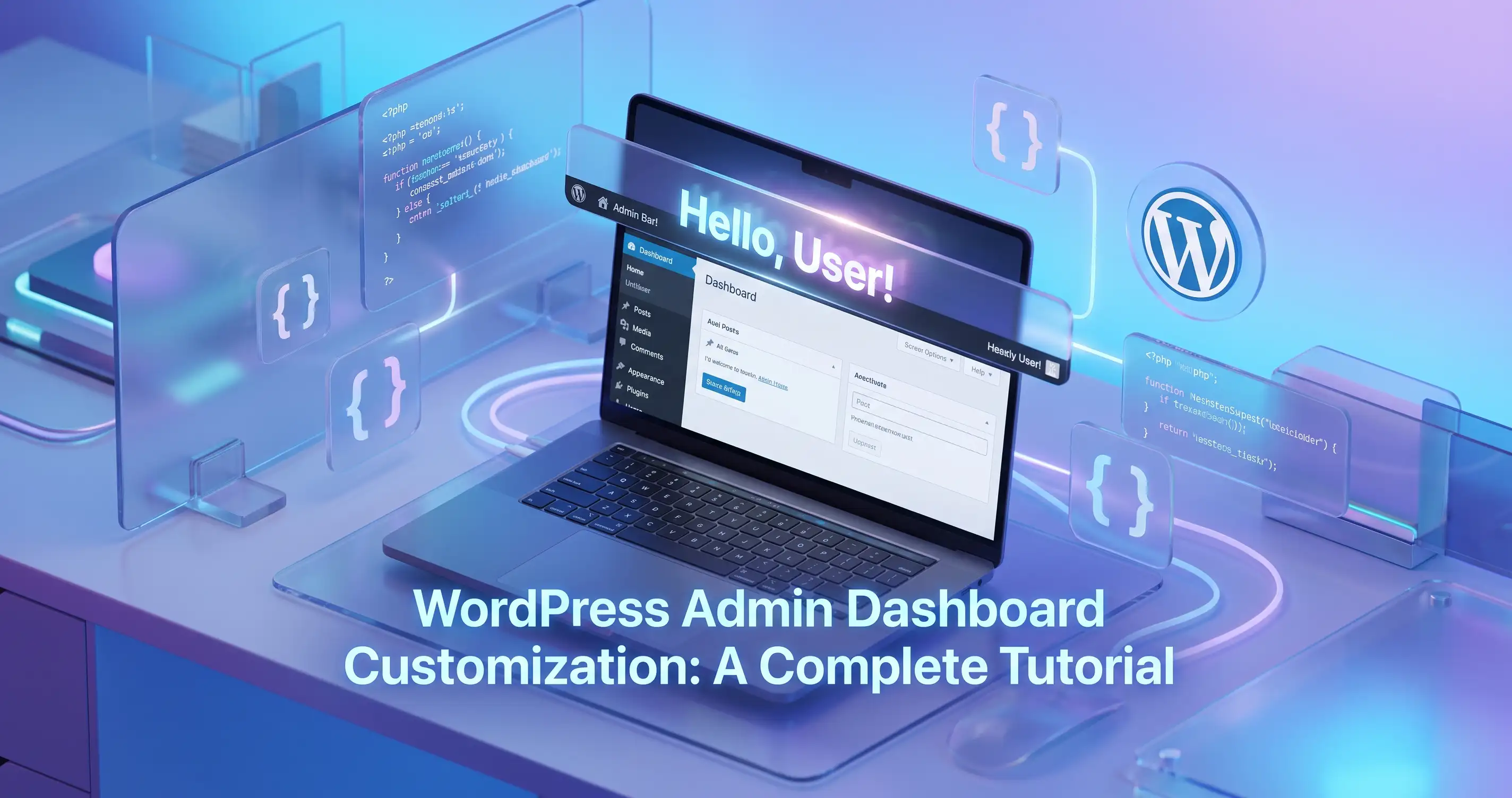
Why Agencies Care About One Word
"Howdy" is a leftover bit of early-2000s WordPress personality that core has never removed. For a personal blog, it's harmless. For an agency handing a client a fully white-labeled dashboard — your logo, your login screen, your branding everywhere else — a casual "Howdy, Sarah" in the top-right corner is the one detail that breaks the illusion that this is custom software built specifically for them. It's a small fix, but it's exactly the kind of small fix clients notice.
Add every snippet below to a site-specific plugin rather than your theme's functions.php, so the branding survives a theme switch — which matters more than usual here, since white-label branding is often exactly what you don't want tied to a swappable theme.
Method 1: Quick Text Swap (Keep the Structure, Change the Word)
The lightest-touch option: WordPress's "Howdy, %1$s" string is translatable, so you can intercept it through the same filter WordPress uses for language translations — without touching the admin bar's structure at all.
Where to insert: your site-specific plugin file.
- Paste the snippet below into your plugin file.
- Reload wp-admin and check the top-right corner of the admin bar.
- Confirm it now reads "Welcome, [Your Name]" instead of "Howdy, [Your Name]".
function replace_howdy_text($translated, $text, $domain) {
    if ('Howdy, %1$s' === $text) {
        return str_replace('Howdy', 'Welcome', $translated);
    }
    return $translated;
}
add_filter('gettext', 'replace_howdy_text', 10, 3);
Method 2: Full Control Over the Greeting (admin_bar_menu Hook)
For more than a word swap — a completely custom message, different wording, or restructured layout — hook directly into the admin bar's node system instead of intercepting translation strings. This is the method that gives you real control over exactly what renders.
Where to insert: your site-specific plugin file.
- Paste the snippet below into your plugin file.
- Reload wp-admin and confirm the greeting reads "Logged in as: [Name]" with the user's avatar still showing beside it.
- Also check the front-end of your site while logged in — the admin bar (and this same greeting) appears there too, not just in wp-admin.
function custom_admin_bar_greeting($wp_admin_bar) {
    $current_user = wp_get_current_user();
    $avatar       = get_avatar(get_current_user_id(), 26);
    $greeting     = 'Logged in as: ' . esc_html($current_user->display_name);

    $wp_admin_bar->add_node(array(
        'id'    => 'my-account',
        'title' => $avatar . $greeting,
    ));
}
add_action('admin_bar_menu', 'custom_admin_bar_greeting', 25);
On the priority number: WordPress core adds the original "my-account" node at priority 0 on the admin_bar_menu hook. Your function has to run after that to have something to override — priority 25 guarantees this reliably. Using a priority lower than core's (like the default 10) can cause your changes to be silently overwritten by core's own node afterward.
Method 3: Role-Based Greetings for Multi-Client Dashboards
If you manage a dashboard used by both your own team and client-level users, you likely want a different tone for each — something more casual internally, something more formal or brand-specific for the client. This snippet checks the logged-in user's role and shows a different greeting accordingly.
Where to insert: your site-specific plugin file.
- Paste the snippet below into your plugin file.
- Log in as an Administrator and confirm you see "Welcome back, [Name]".
- Log in as a non-administrator test account and confirm they see "Logged in as: [Name]" instead.
function role_based_admin_bar_greeting($wp_admin_bar) {
    $current_user = wp_get_current_user();
    $avatar       = get_avatar(get_current_user_id(), 26);

    if (in_array('administrator', $current_user->roles, true)) {
        $greeting = 'Welcome back, ' . esc_html($current_user->display_name);
    } else {
        $greeting = 'Logged in as: ' . esc_html($current_user->display_name);
    }

    $wp_admin_bar->add_node(array(
        'id'    => 'my-account',
        'title' => $avatar . $greeting,
    ));
}
add_action('admin_bar_menu', 'role_based_admin_bar_greeting', 25);
Bonus: Remove the WordPress Logo for Full White-Labeling
The greeting text usually isn't the only giveaway — the WordPress logo in the top-left corner of the admin bar, which links out to WordPress.org, is another. If you're white-labeling a dashboard, this is worth removing alongside the greeting fix.
Where to insert: your site-specific plugin file.
- Paste the snippet below into your plugin file.
- Reload wp-admin and confirm the WordPress logo icon is gone from the top-left of the admin bar.
function remove_wp_logo_from_admin_bar($wp_admin_bar) {
    $wp_admin_bar->remove_node('wp-logo');
}
add_action('admin_bar_menu', 'remove_wp_logo_from_admin_bar', 999);
Verification Checklist
- Check the admin bar inside wp-admin — the greeting should reflect whichever method you applied.
- Check the admin bar on your site's public-facing pages while logged in — the same admin bar renders there, and it's easy to forget to check it since most testing happens inside wp-admin.
- If you applied Method 3, test with at least two different roles to confirm the conditional logic actually branches correctly, not just the fallback case.
- If the greeting doesn't change at all, double-check your hook's priority — a number lower than or equal to WordPress core's is the most common reason a custom node gets silently overridden.
Final Checklist
- Chose Method 1 for a minimal wording tweak, or Method 2/3 for full structural control.
- Confirmed the greeting updates correctly in both wp-admin and the logged-in front-end view.
- Applied role-based logic if the dashboard serves both internal team members and clients.
- Removed the WordPress logo from the admin bar if full white-labeling is the goal.
- Verified hook priority is set above 0 so the custom node isn't overwritten by WordPress core's own registration.
None of these snippets touch the database or require ongoing maintenance — once set, the greeting stays branded exactly as configured through every WordPress update, since none of this modifies WordPress core files directly.
Comments & Feature Requests
0 Found a bug, or want a new tool? Let us know below.
comments_no_comments