How to Create Custom Post Types and Taxonomies in WordPress Using PHP (No Plugins)
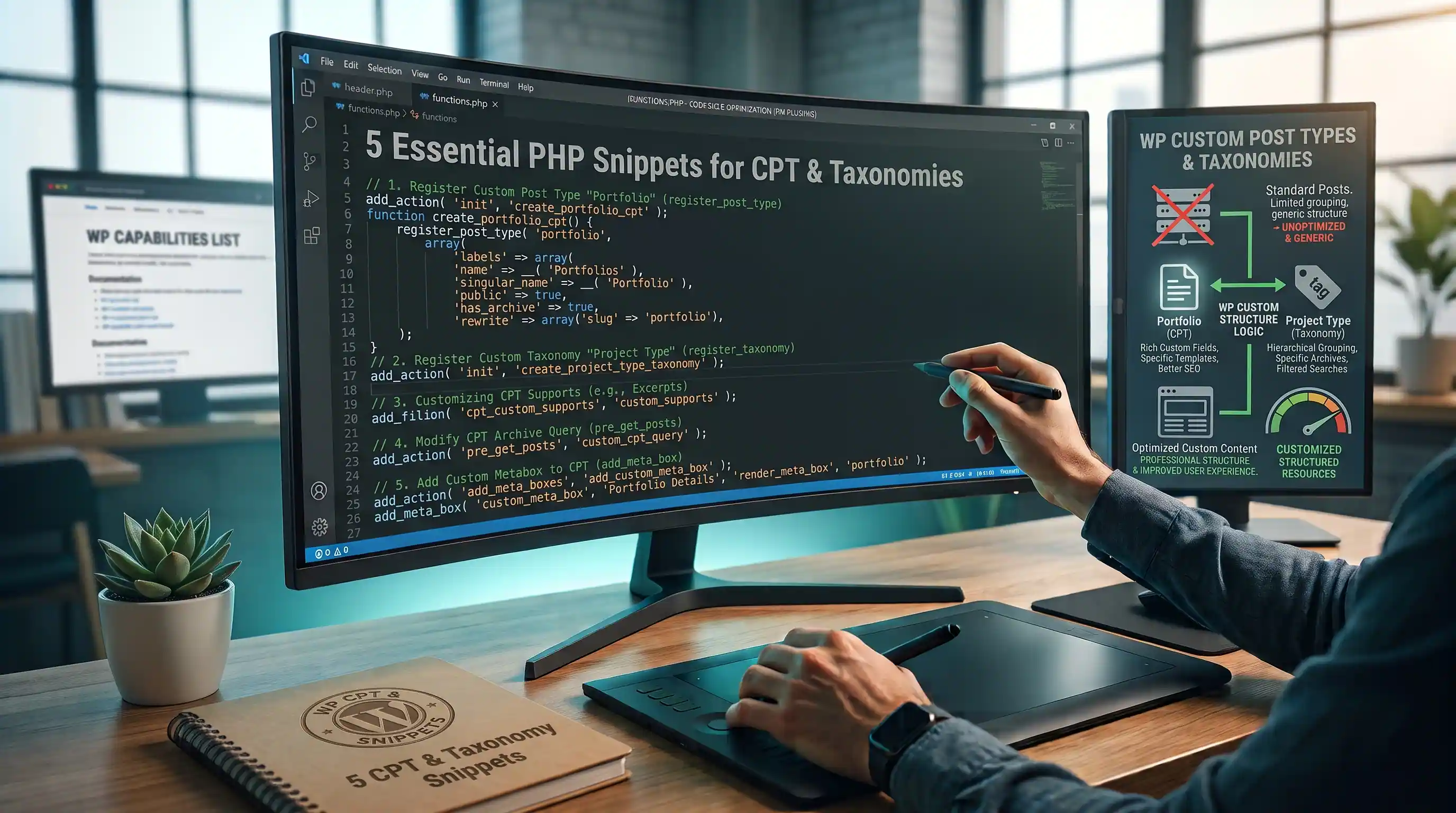
Why Register Post Types in Code Instead of a Plugin
CPT UI is a fine plugin, but registering a post type through a settings screen means that structure lives in your database as plugin configuration — deactivate the plugin by accident, and your "Portfolio" post type silently disappears along with the admin menu to manage it, even though the posts are still sitting in wp_posts. Registering it in code means the post type definition ships with your theme or plugin files, travels with version control, and can't be switched off from a settings screen by mistake.
Everything below is written for a "Portfolio" post type with a "Project Categories" taxonomy — swap the names for whatever content type you're building. Place all five snippets in a site-specific plugin rather than your theme's functions.php: post type registration is data structure, not presentation, so it should survive a theme change.
1. Register the Custom Post Type
This is the core registration — labels for every screen the CPT touches, plus the arguments controlling its behavior: whether it's public, has archive pages, appears in the REST API (required for the block editor), and what features it supports.
Where to insert: your site-specific plugin file.
- Paste the snippet below into your plugin file.
- Reload your WordPress admin — "Portfolio" should now appear as a menu item in the sidebar.
- Click Add New and confirm the title, editor, featured image, and excerpt fields all work as expected.
function register_portfolio_cpt() {
    $labels = array(
        'name'               => 'Portfolio',
        'singular_name'      => 'Project',
        'menu_name'          => 'Portfolio',
        'add_new'            => 'Add New Project',
        'add_new_item'       => 'Add New Project',
        'edit_item'          => 'Edit Project',
        'new_item'           => 'New Project',
        'view_item'          => 'View Project',
        'search_items'       => 'Search Projects',
        'not_found'          => 'No projects found',
        'not_found_in_trash' => 'No projects found in Trash',
        'all_items'          => 'All Projects',
    );

    $args = array(
        'labels'          => $labels,
        'public'          => true,
        'has_archive'     => true,
        'show_in_rest'    => true, // required for the block editor and REST API
        'menu_icon'       => 'dashicons-portfolio',
        'rewrite'         => array('slug' => 'portfolio', 'with_front' => false),
        'supports'        => array('title', 'editor', 'thumbnail', 'excerpt', 'custom-fields'),
        'capability_type' => 'post',
        'hierarchical'    => false,
        'menu_position'   => 5,
    );

    register_post_type('portfolio', $args);
}
add_action('init', 'register_portfolio_cpt');
2. Register a Custom Taxonomy
A taxonomy is what lets you group posts of your new type — think of it as a custom version of Categories or Tags, attached specifically to your CPT instead of the built-in Posts type. Setting hierarchical to true gives you parent/child terms like Categories; false gives you flat, comma-separated terms like Tags.
Where to insert: your site-specific plugin file, alongside the CPT registration.
- Paste the snippet below into your plugin file.
- Reload wp-admin and confirm "Categories" appears as a submenu under Portfolio.
- Add a couple of terms, then open a Portfolio project and confirm you can assign them from the editor sidebar.
function register_portfolio_taxonomy() {
    $labels = array(
        'name'          => 'Project Categories',
        'singular_name' => 'Project Category',
        'search_items'  => 'Search Categories',
        'all_items'     => 'All Categories',
        'edit_item'     => 'Edit Category',
        'update_item'   => 'Update Category',
        'add_new_item'  => 'Add New Category',
        'new_item_name' => 'New Category Name',
        'menu_name'     => 'Categories',
    );

    $args = array(
        'labels'       => $labels,
        'hierarchical' => true, // true behaves like Categories, false behaves like Tags
        'public'       => true,
        'show_in_rest' => true,
        'rewrite'      => array('slug' => 'portfolio-category'),
    );

    register_taxonomy('portfolio_category', array('portfolio'), $args);
}
add_action('init', 'register_portfolio_taxonomy');
3. Add Custom Columns to the Admin Edit Screen
By default, the Portfolio list table in wp-admin only shows Title, Date, and not much else — you can't see which category a project belongs to without opening each one. This snippet adds a Category column and a small thumbnail preview directly to the list table.
Where to insert: your site-specific plugin file.
- Paste the snippet below into your plugin file.
- Go to Portfolio → All Projects in wp-admin.
- Confirm two new columns appear — Category and Image — populated correctly for each project.
function add_portfolio_admin_columns($columns) {
    $new_columns = array();
    foreach ($columns as $key => $value) {
        $new_columns[$key] = $value;
        if ($key === 'title') {
            $new_columns['project_category'] = 'Category';
            $new_columns['featured_image']   = 'Image';
        }
    }
    return $new_columns;
}
add_filter('manage_portfolio_posts_columns', 'add_portfolio_admin_columns');

function render_portfolio_admin_columns($column, $post_id) {
    switch ($column) {
        case 'project_category':
            $terms = get_the_term_list($post_id, 'portfolio_category', '', ', ');
            echo $terms ? $terms : '—';
            break;
        case 'featured_image':
            echo has_post_thumbnail($post_id) ? get_the_post_thumbnail($post_id, array(50, 50)) : '—';
            break;
    }
}
add_action('manage_portfolio_posts_custom_column', 'render_portfolio_admin_columns', 10, 2);
4. Flush Rewrite Rules Safely
Registering a post type creates new permalink structures — but WordPress only regenerates its internal rewrite rules table when something explicitly tells it to. Skip this step and every single Portfolio project 404s on the frontend even though the post type registration itself is working perfectly. The fix is flush_rewrite_rules(), but it's expensive and must never run on every page load.
Where to insert: your site-specific plugin file.
- Paste the snippet below into your plugin file.
- Deactivate the plugin (or theme, if using a theme's functions.php) and reactivate it once — this fires
after_switch_theme/activation and flushes the rules a single time. - Visit a single Portfolio project's permalink on the frontend and confirm it loads instead of showing a 404.
- Also check Settings → Permalinks — simply opening and saving that screen (even with no changes) flushes rewrite rules too, which is the safe manual fallback if you'd rather not touch activation hooks.
function flush_portfolio_rewrite_rules() {
    register_portfolio_cpt();
    register_portfolio_taxonomy();
    flush_rewrite_rules();
}
add_action('after_switch_theme', 'flush_portfolio_rewrite_rules');
Do not hook flush_rewrite_rules() to init or any other action that fires on every request — that rebuilds the entire rewrite rules table on every single page load, which is a well-documented way to quietly tank site performance.
5. Include the CPT in Main Loop Queries
By default, WordPress's built-in search and the main blog loop only include the "post" post type — your new Portfolio projects are invisible to site search unless you explicitly add them. This snippet extends the default search query to include Portfolio alongside regular posts, without touching any other query on the site.
Where to insert: your site-specific plugin file.
- Paste the snippet below into your plugin file.
- Use your site's search form to search for a keyword that only appears in a Portfolio project's title or content.
- Confirm that project now appears in the search results alongside regular blog posts.
- The
is_main_query()check keeps this from affecting custom queries elsewhere on the site (like a related-posts widget), so it's safe to leave active site-wide.
function include_portfolio_in_search($query) {
    if (!is_admin() && $query->is_search() && $query->is_main_query()) {
        $query->set('post_type', array('post', 'portfolio'));
    }
    return $query;
}
add_action('pre_get_posts', 'include_portfolio_in_search');
Final Checklist
- Portfolio CPT registered and confirmed as a working menu item with a functioning Add New screen.
- Project Categories taxonomy registered and assignable from the Portfolio editor sidebar.
- Category and Image columns confirmed showing correct data in the admin list table.
- Rewrite rules flushed once via activation, and a single Portfolio permalink confirmed loading without a 404.
- Portfolio projects confirmed appearing in site search results.
None of this touches your database directly or requires a migration — post type and taxonomy registration is entirely code-defined and rebuilt from these functions on every page load, which is exactly why it belongs in version control instead of a plugin's settings table.
Comments & Feature Requests
0 Found a bug, or want a new tool? Let us know below.
comments_no_comments