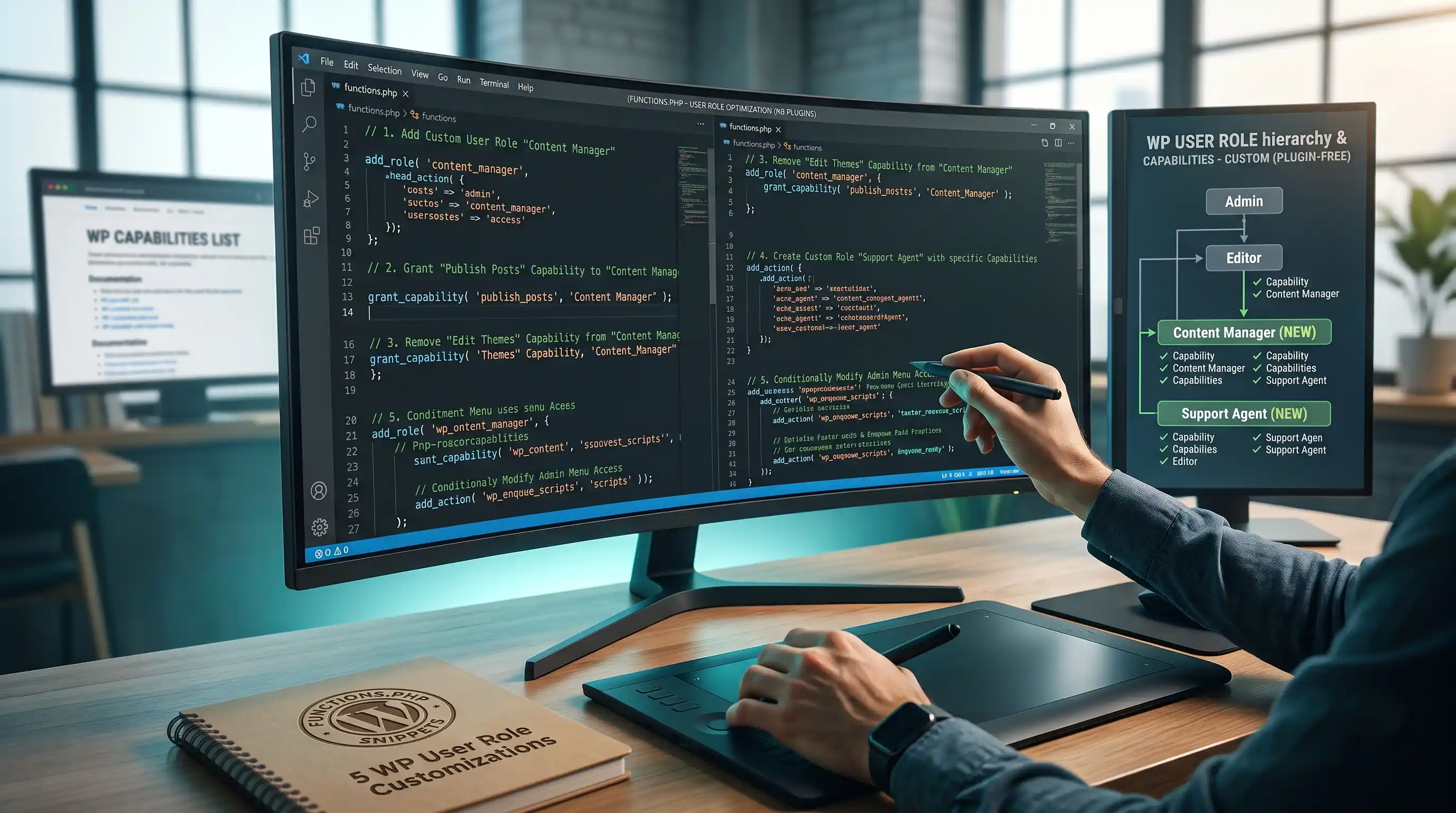
Why Handle Roles in Code Instead of a Plugin
If you build client dashboards for a living, you've probably installed a "User Role Editor" plugin at some point just to strip a handful of menu items and lock a client out of Plugins and Tools. That's a lot of ongoing plugin maintenance for something that's really five small, static rules. Once a client's access model is defined, it rarely changes — which makes it a perfect candidate for code instead of a settings screen.
Add every snippet below to a site-specific plugin file, not your theme's functions.php, so the access rules survive theme switches. Create /wp-content/mu-plugins/custom-roles.php, or drop these functions into an existing custom plugin.
1. Create a New Custom Role with Specific Capabilities
WordPress ships with fixed roles — Administrator, Editor, Author, Contributor, Subscriber — that rarely map exactly to what a client needs. This snippet registers a new "Client Editor" role that can edit and publish posts/pages and upload media, without touching plugins, themes, or other users' accounts.
Where to insert: your site-specific plugin file.
- Paste the snippet below into your plugin file.
- Reload any admin page once —
add_role()only needs to run a single time to register the role in the database. - Go to Users → Add New and confirm "Client Editor" appears in the Role dropdown.
- Create a test user with this role, log in as them, and confirm they can edit/publish posts and pages but cannot see Plugins or Tools.
function register_custom_client_role() {
    add_role(
        'client_editor',
        'Client Editor',
        array(
            'read'                 => true,
            'edit_posts'           => true,
            'edit_published_posts' => true,
            'upload_files'         => true,
            'edit_pages'           => true,
            'edit_published_pages' => true,
        )
    );
}
add_action('init', 'register_custom_client_role');
Important: add_role() silently does nothing if a role with that slug already exists — it will not update the capabilities array on an existing role. If you edit the capabilities list after the role has already been created once, remove the old role first with remove_role('client_editor'); (run it once, then delete that line), then reload to re-register it with the new capabilities.
2. Remove Specific Dashboard Menu Items for Non-Admin Users
Even a well-scoped custom role's dashboard can look busy if plugins add their own top-level menu items. This snippet strips out anything you don't want a non-administrator seeing, by menu slug.
Where to insert: your site-specific plugin file.
- Paste the snippet below into your plugin file.
- Log in as a non-administrator test user and check the sidebar.
- Confirm Tools, Comments, Plugins, and Users are gone from the menu.
- Add or remove
remove_menu_page()lines to match exactly what your client role should see.
function restrict_menu_for_non_admins() {
    if (!current_user_can('administrator')) {
        remove_menu_page('tools.php');          // Tools
        remove_menu_page('edit-comments.php');  // Comments
        remove_menu_page('plugins.php');        // Plugins
        remove_menu_page('users.php');          // Users
    }
}
add_action('admin_menu', 'restrict_menu_for_non_admins', 999);
Hiding a menu item is a UI convenience, not a security boundary on its own — a user without the underlying capability (like activate_plugins) already can't reach that screen even by typing the URL directly, so pair this with the capabilities you set in Step 1 rather than relying on it alone.
3. Hide Plugin/Theme Update Notices for Non-Administrators
Update nags, "please review these changes" banners, and third-party plugin ads at the top of the dashboard are meant for the person maintaining the site — not the client logging in to edit a page. This snippet clears all admin notices for anyone who isn't an administrator.
Where to insert: your site-specific plugin file.
- Paste the snippet below into your plugin file.
- Log in as a non-administrator and confirm the dashboard loads with no notice banners at the top.
- Log in as an administrator and confirm update notices still appear normally for you.
function hide_all_admin_notices_for_non_admins() {
    if (!current_user_can('administrator')) {
        remove_all_actions('admin_notices');
        remove_all_actions('all_admin_notices');
    }
}
add_action('admin_head', 'hide_all_admin_notices_for_non_admins', 1);
This is deliberately blunt — it clears every notice, not just update nags, which also hides things like "Post published successfully" banners for non-admins. If you want to keep WordPress's own success/error messages and only strip third-party plugin nags, you'll need to loop through $wp_filter['admin_notices'] and selectively unhook callbacks by plugin — more precise, but noticeably more code for a narrower win.
4. Redirect Non-Admin Users to a Custom URL After Login
Sending every user to the same wp-admin dashboard after login means client-facing roles land on a screen full of stats and settings meant for you, not them. This snippet checks the logging-in user's role and sends non-administrators to a URL you choose — a custom "client dashboard" page, for example.
Where to insert: your site-specific plugin file.
- Paste the snippet below into your plugin file.
- Replace
/client-dashboard/with the actual page slug you want non-admins to land on. - Log out, then log back in as your non-administrator test user.
- Confirm you land on the custom URL instead of /wp-admin/, and that an administrator login still goes to the normal dashboard.
function redirect_non_admins_after_login($redirect_to, $request, $user) {
    if (isset($user->roles) && is_array($user->roles)) {
        if (in_array('administrator', $user->roles, true)) {
            return admin_url();
        }
        return home_url('/client-dashboard/');
    }
    return $redirect_to;
}
add_filter('login_redirect', 'redirect_non_admins_after_login', 10, 3);
5. Block Direct Access to /wp-admin for Subscribers
Subscriber-level accounts (or any custom role built only for front-end access, like commenting or a members-only area) have no real reason to see the wp-admin dashboard at all. This snippet bounces anyone without content-editing capability back to the homepage the moment they try to load a wp-admin screen, while leaving AJAX requests untouched so front-end features that rely on admin-ajax.php keep working.
Where to insert: your site-specific plugin file.
- Paste the snippet below into your plugin file.
- Log in as a Subscriber-level test user.
- Try visiting yoursite.com/wp-admin/ directly — you should be redirected to the homepage instead of seeing the dashboard.
- Confirm any AJAX-dependent front-end feature (like a WooCommerce "add to cart" button, if applicable) still works for this user — the
DOING_AJAXcheck exists specifically to protect this.
function block_wp_admin_for_subscribers() {
    if (
        is_admin() &&
        !defined('DOING_AJAX') &&
        current_user_can('read') &&
        !current_user_can('edit_posts')
    ) {
        wp_safe_redirect(home_url());
        exit;
    }
}
add_action('admin_init', 'block_wp_admin_for_subscribers');
Final Checklist
- Custom "Client Editor" role registered and confirmed in the Users → Add New role dropdown.
- Unwanted dashboard menu items removed for every non-administrator role.
- Admin notices confirmed hidden for non-admins, still visible for administrators.
- Non-admin login redirect tested and pointing to the correct custom URL.
- Subscriber-level wp-admin access blocked, with AJAX functionality confirmed still working.
All five snippets work off WordPress's own roles and capabilities system — nothing here is a hack around core behavior, which means it keeps working the same way through every WordPress update. Once it's set up for one client, copying these five functions into the next project takes less time than configuring a role-management plugin from scratch.
Comments & Feature Requests
0 Found a bug, or want a new tool? Let us know below.
comments_no_comments