
Before You Touch Anything: Back Up Your Database
Every query below runs a real DELETE against your live database. There is no undo button in phpMyAdmin. Before running any of the five steps here, export a full database backup — in phpMyAdmin, go to your database, click Export, choose Quick, and download the .sql file. If something looks wrong afterward, you can re-import that file and be back exactly where you started.
1. Delete Old Post Revisions Safely
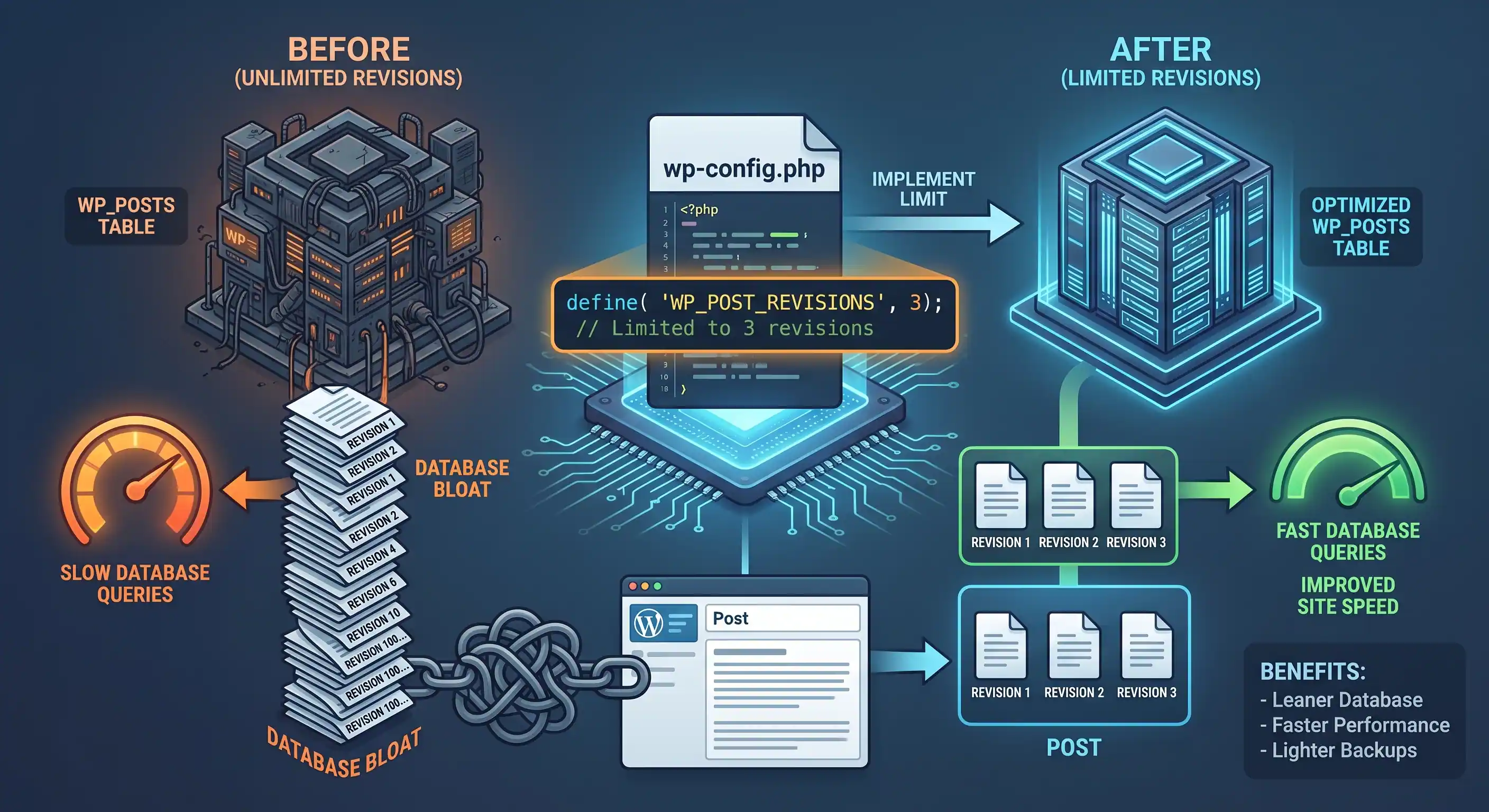
WordPress saves a full copy of a post every time you hit save — forever, by default. A blog with a few hundred posts edited regularly can easily accumulate tens of thousands of revision rows in wp_posts, most of them years old and never going to be restored.
Where to insert: phpMyAdmin → your database → SQL tab
DELETE FROM wp_posts WHERE post_type = 'revision';Step-by-step:
- Confirm your table prefix first — if it isn't
wp_, replace it in the query (checkwp-config.phpfor$table_prefix). - Run the query in the SQL tab.
- To stop revisions from piling up again, add this to
functions.phporwp-config.phpto cap how many WordPress keeps per post going forward:
// In wp-config.php, above the "That's all, stop editing!" line:
define( 'WP_POST_REVISIONS', 5 );- This constant only limits future revisions — that's why you still needed the one-time DELETE above for what's already accumulated.
2. Clean Up Auto-Drafts and Old Trashed Posts
Every time you open the block editor to write something new, WordPress silently creates an "auto-draft" post in the background — even if you never finish or publish it. Trashed posts also sit in the database indefinitely unless you manually empty the trash. Both add up to dead rows that serve no purpose.
Where to insert: phpMyAdmin → SQL tab
-- Remove auto-drafts older than 7 days
DELETE FROM wp_posts WHERE post_status = 'auto-draft' AND post_date < NOW() - INTERVAL 7 DAY;

-- Remove trashed posts older than 30 days
DELETE FROM wp_posts WHERE post_status = 'trash' AND post_modified < NOW() - INTERVAL 30 DAY;
Step-by-step:
- Adjust the
INTERVALvalues if you want a longer safety window before old drafts/trash are removed. - Run both queries in the SQL tab.
- Note that this only deletes from
wp_posts— step 4 below cleans up any leftover metadata these posts left behind.
3. Remove Expired Transients From wp_options
Transients are WordPress's built-in temporary cache — plugins and themes use them constantly to avoid recalculating things on every page load. The problem is that expired transients are supposed to delete themselves when WordPress notices they're expired, but on many sites (especially ones with heavy caching plugins that skip this check) thousands of stale _transient_ rows pile up in wp_options and are never cleaned automatically.
Where to insert: phpMyAdmin → SQL tab
DELETE FROM wp_options
WHERE option_name LIKE '\_transient\_%'
   OR option_name LIKE '\_transient\_timeout\_%'
   OR option_name LIKE '\_site\_transient\_%'
   OR option_name LIKE '\_site\_transient\_timeout\_%';
Step-by-step:
- Run the query in the SQL tab.
- This is completely safe to run even on a live site — plugins that need a transient will simply regenerate it the next time they need that cached value, with no visible effect to visitors.
- If your site relies on scheduled transients for something time-sensitive (like a countdown or a rate-limited API cache), that specific cache will just rebuild itself on the next relevant page load — nothing breaks, it's just momentarily "cold."
4. Delete Orphaned Post Meta
When a post is deleted directly from the database (like with the queries in steps 1 and 2 above, or by an old plugin that didn't clean up after itself), its custom field data in wp_postmeta often gets left behind — rows pointing to a post_id that no longer exists anywhere. These orphaned rows do nothing but take up space and slightly slow down meta queries.
Where to insert: phpMyAdmin → SQL tab
DELETE pm FROM wp_postmeta pm
LEFT JOIN wp_posts wp ON pm.post_id = wp.ID
WHERE wp.ID IS NULL;
Step-by-step:
- Run this after steps 1 and 2 above, since those queries are exactly what creates orphaned meta rows in the first place.
- The
LEFT JOIN ... WHERE wp.ID IS NULLpattern is the safe part here — it only targets meta rows whose parent post genuinely no longer exists, so it can't accidentally delete meta for a post that's still there. - Run the query once; there's no harm in running it again later as routine maintenance.
5. Reclaim Disk Space With OPTIMIZE TABLE
Here's the part most cleanup guides skip: deleting rows doesn't actually shrink your database file size immediately. MySQL/MariaDB marks the space as reusable but keeps the file the same size until you explicitly tell it to defragment — which is exactly what OPTIMIZE TABLE does.
Where to insert: phpMyAdmin → SQL tab (run this last, after all the deletes above)
OPTIMIZE TABLE wp_posts, wp_postmeta, wp_options, wp_comments, wp_commentmeta;Step-by-step:
- Run this only after you've finished all the deletions above — running it earlier just wastes a pass with nothing to reclaim yet.
- On very large tables (500,000+ rows), this can briefly lock the table while it runs — schedule it for low-traffic hours if your store or site is large.
- Check your database size in phpMyAdmin's database overview before and after to see the actual space reclaimed.
How Often Should You Do This?
For most sites, running through these five steps once every 2-3 months is plenty — WordPress doesn't generate garbage data fast enough on a typical site to need it weekly. High-traffic WooCommerce stores or sites with heavy caching plugin activity (which lean hard on transients) may benefit from doing steps 3 and 5 monthly instead.
Prefer copy-paste code cards with a live preview over scrolling through a blog post? Check the WordPress PHP Functions & Hooks category in our WordPress Snippet Generator.

Comments & Feature Requests
0 Found a bug, or want a new tool? Let us know below.
comments_no_comments